Athene Docs › calibre
calibre
Athene reads your calibre library over your own network: calibre’s Content server, calibre-server on a NAS, or calibre-web. Browse it like a bookshop, download what you want to read, and send your highlights and how far you’ve read back to calibre.
Start the server
calibre on your computer
- In calibre, click Connect/share and choose Start Content server.
- If your computer asks whether calibre may accept incoming connections, choose Allow. Otherwise the server runs but your iPhone or iPad can’t reach it.
- Open Connect/share again: Stop Content server now shows the address and port, like
192.168.1.20:8080. - To keep it on, tick Run server automatically when calibre starts in Preferences › Sharing over the net.
calibre-web
Use the address you open calibre-web with in a browser, like http://192.168.1.20:8083. If that says localhost, use the computer’s network address instead.
Connect
Tap + on the Library, then Calibre. Under Connect to Calibre, enter the Server URL, and the Username and Password you use for that server, then tap Connect.
- The port can be left off for an address on your home network: Athene tries 8080, calibre’s, and 8083, calibre-web’s.
- At home or over a VPN such as Tailscale, a plain
http://address works. Over the open internet, use the server’shttps://address: Athene sends your password only over an encrypted connection. - The first time, iOS asks whether Athene may find devices on your local network. Allow it, or Athene can’t reach a server at home.
Your password is kept in your device’s keychain. To change server, or switch to another, tap the Server button at the top of the Calibre screen and connect again.
Browsing and downloading
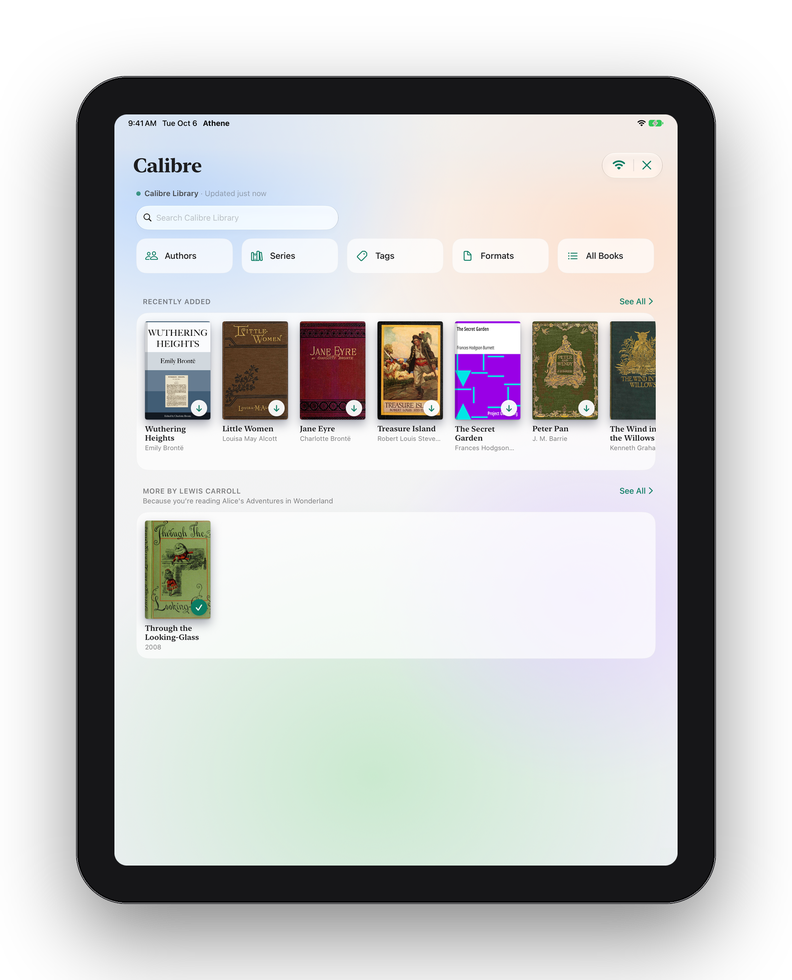
The Calibre screen opens on Recently Added, Next in Your Series, which picks up after books you’ve finished, and More by the author you’re reading. Under Browse are Authors, Series, Tags, Formats and All Books, and the search at the top searches the whole library. Pull down to reload it.
Tap Download on a book’s page, or the arrow on its cover. It comes with calibre’s title, author, cover, description, series and tags, and its tags become collections under From Calibre. A tick on a cover means the book is on your shelf.
Only books calibre holds as EPUB or PDF are listed. To read one that’s only in MOBI or AZW3, convert it to EPUB in calibre first, or add the file itself through Files.
Sending to calibre
Turn on Settings › Sync › Calibre › Send Highlights & Progress and Athene sends calibre your highlights and notes, how far you’ve read, and which books you’ve finished. Highlights you make in calibre’s own E-book viewer come back into Athene. It all happens by itself, a few seconds after a change.
| Mark Finished Books as Read | A Yes/No or date column of yours, or the tag “Read”. A book counts as finished when you read it to the end or put it in Finished. Athene finds a column called read, finished, done or completed by itself. |
|---|---|
| Progress Column | A number column of yours for how far through you are, such as one called progress. |
This works with calibre’s own Content server, on your computer or on a NAS, and with EPUBs. calibre-web has nowhere to keep highlights, so with calibre-web the row is greyed. Drawings and bookmarks stay in Athene.
Setting calibre up for it
How to Set Up Sending, on the same page, shows each step in calibre:
- In calibre, open Preferences › Sharing over the net.
- On the Main tab, tick Require username and password to access the Content server.
- On the User accounts tab, click Add user, and tick Allow … to make changes.
- Click Apply, then Restart server.
- Optional, to see your reading in calibre: in Preferences › Add your own columns, add progress (type Integers) and read (type Yes/No), then restart calibre.
- Connect in Athene, under Library › + › Calibre, with that username and password.
- Optional, to see your highlights in calibre’s E-book viewer: in its Preferences › Miscellaneous, enter the same username under Sync bookmarks/highlights with Content server user.
Running calibre-server on its own, on a NAS? Start it with --enable-auth, add a user with --manage-users, and add the columns with calibredb add_custom_column.
When it won’t connect
Athene says what went wrong. The usual ones:
- Calibre isn’t answering
- The computer is on your network but calibre isn’t serving. Start the Content server (Show me how walks you through it), or check calibre-web is running.
- No answer from …
- Check the computer is awake, on the same Wi‑Fi as your device and not a guest network, and that the address is right. Check, too, that the computer allowed calibre to accept incoming connections; if you dismissed that question, allow calibre in its firewall settings.
- Athene can’t see your network
- Turn on Local Network for Athene in Settings › Privacy & Security › Local Network.
- Not on your Wi‑Fi
- The address is on your home network and your device isn’t on Wi‑Fi. Join that network. Away from home, use the server’s address on your VPN, such as its Tailscale 100.x address or .ts.net name, rather than its home address.
- Use this server’s https address
- The server is on the open internet and answered over plain http. Use its https address, or reach it at home or over Tailscale.
- That’s calibre’s wireless port
- Port 9090 is calibre’s wireless device connection, which Athene doesn’t use. Use the Content server, on 8080 unless you changed it.
- That address is this iPhone, or isn’t your computer’s address
- An address like localhost points at the device itself. Use the address calibre shows under Connect/share.
- Connected, but there are no books
- Only books in EPUB or PDF are listed, so a library of MOBI or AZW3 books looks empty. With calibre-web, check too that your account is allowed to download, in calibre-web’s admin.
Written for Athene 3.4. Something here wrong, or missing? Write to athene@theadipost.com.