Athene Docs › Highlights & Notes
Highlights & Notes
Select a passage and Athene offers a highlight, a note, the dictionary, the Owl and a translation, all from one menu. Everything you mark is gathered in the Notebook.
Selecting
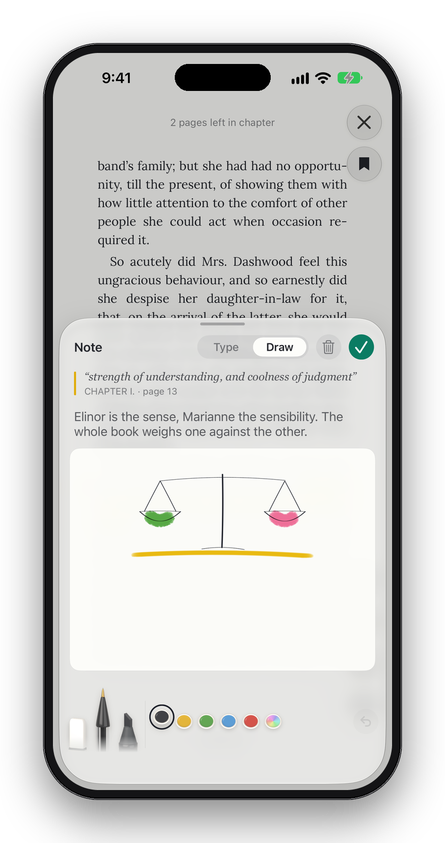
Touch and hold a word, then drag the handles to the ends of the passage. A finger that rests on the words for a moment before it moves selects text instead of turning the page.
When a passage runs on past the foot of the page, choose Continue on Next Page: the page turns and Athene asks you to Tap where the passage ends.
The menu
When you select words, or tap a highlight, a menu appears over them. At the top, for a single English word, is what it means here; tap it for the whole entry. If the highlight has a note, the note is shown there instead, and a tap opens it.
Under that is a row of colours: Yellow, Green, Blue, Pink, Purple and Underline. Tap one to highlight the passage, or to change the colour of a highlight. Then, where they apply:
| Look Up | Apple’s dictionary, for a word Athene’s own dictionary doesn’t show. |
|---|---|
| Add Note | A note on the passage, typed or drawn (Edit Note if it has one). |
| Copy | The passage as plain text. |
| Ask the Owl | Ask about the passage. See Ask the Owl. |
| Translate | The translate button, for Apple’s translation. |
| Remove | Takes away a highlight, with its note. |
| Continue on Next Page | Carries a selection over the page turn. |
Highlights hold to the words, not the page, so they stay put through any change of size, typeface or margins.
Notes
Choose Add Note and the note opens: on iPhone as a sheet from the foot of the screen, on iPad beside the passage, and on the facing page when two pages are showing. It shows the passage it belongs to and where it is in the book. Type, and the note is kept as you go; there’s no Save. Tap ✓, or just close it, when you’re done.
Add Note on a passage you haven’t highlighted highlights it first, in yellow (in a PDF, in the colour you used last). Close the note empty and that highlight goes again. Delete a note with the bin and a highlight you had already made stays, while one made just for the note goes with it.
On iPad, Apple Pencil can write into a typed note with Scribble.
Drawing
Switch a note from Type to Draw to sketch in it. The tray holds an Eraser, a Ballpoint and a Marker, and inks in Black, Yellow, Green, Blue and Red; Mix a Colour makes one of your own. Undo takes back the last stroke. A note can hold words and a drawing together.
Settings › Extras › More Drawing Tools adds a Fountain Pen, a Pencil and a Brush, and Pink and Purple inks.
- A finger draws until you first use Apple Pencil on the device. From then on the Pencil draws and a finger scrolls, as it does when iPadOS’s Only Draw with Apple Pencil is on.
- Double-tap or squeeze Apple Pencil and it does what you’ve chosen in iPadOS: switch to the eraser, switch to the last tool, or show the tools at the Pencil’s tip.
- The tool and ink you used last are ready for the next drawing.
Bookmarks
Tap the bookmark under ✕ to mark the page; it turns red. Tap it again to remove the mark. See Bookmarks.
Changing and removing
Tap a highlight to change its colour, add or edit its note, or Remove it. Or open Contents › Notebook while you read: swipe a highlight left to delete it, or touch and hold it for Colour, Copy, Export and Delete.
Written for Athene 3.4. Something here wrong, or missing? Write to athene@theadipost.com.