Athene Docs › The Page
The Page
Everything about how a book’s page looks is in one place: tap Aa while you read. Changes show on the page as you make them, and Athene keeps your place while the words move.
Aa
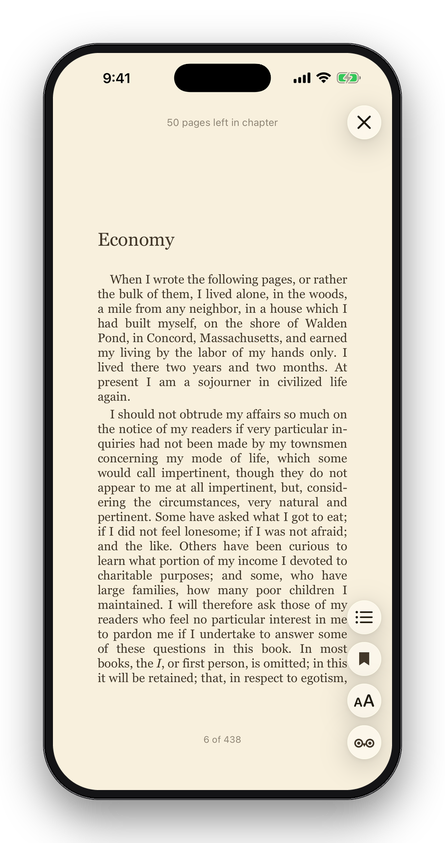
On iPhone, Aa rises from the foot of the screen; on iPad it opens as a card beside the button. It has two sides, Style and Layout. To put it away, tap ✕, tap the page or tap Aa again; on iPhone you can also swipe it down.
What you choose applies to every book, not just this one, except brightness, which lasts until you close the book. With iCloud Sync on, your typeface, size, papers, alignment, line spacing and page turn follow you to your other devices; margins and brightness stay with each device.
Paper
Three papers come with Athene: White, Sepia and Night. Any papers you make sit after them, each showing Aa in its own ink.
Making your own
- Tap the dashed + after the papers.
- Under Start From, pick a starting point: Sage, Mist, Rose, Stone, Slate or Ink.
- Tap Page or Text to change either colour: drag across the colour field for the hue and down it for less of it, use Lightness, type a hex value, or pick one of the Paper Tones or Ink Tones.
- Give it a Name if you like, and tap Save.
The book’s page shows the new paper as you go. Contrast gives the ratio between the text and the page, and says Hard to read below 4.5 to 1, the level at which text starts to tire the eyes over a chapter. You can still save it. Leave without saving and the page goes back as it was.
To change or delete one of your papers, touch and hold it and choose Edit Paper… or Delete Paper.
Brightness
The Brightness slider sets the screen’s brightness while you read, from 15% to full. It never goes fully dark, and the screen goes back to its own brightness when you close the book.
Size and typeface
Size goes from 75% to 245% in twelve steps, starting at 100%. Tap the small or large A.
Seven typefaces come with Athene: Athelas, Charter, Georgia (the one a new reader starts with), Iowan, Palatino, Seravek and Times New Roman. Each is shown in its own face.
Add a Font
Tap + Add a Font under the typefaces to choose any family from Google Fonts. Search by name, or browse For Reading, Serif, Sans Serif, Display, Handwriting and Monospace. Tap a family and the page is set in it, so you can judge it against the book; tap Add to keep it, or go back and the page returns to the face you had.
The list of families comes with Athene, so browsing works offline, but previewing and adding a font needs an internet connection: the font is downloaded from Google once, with no account, and kept on your device.
Touch and hold a font you’ve added for Edit Font…, where you can choose its Weight (when the family has more than one) and see its licence and size, or Remove Font. If the font you remove is the one you read in, the page goes back to Georgia.
Layout
| Alignment | Justified, with words hyphenated at the end of a line the way a printed book is, or Ragged, with a ragged right edge and no hyphens. A book’s own headings keep their alignment either way; with Ragged, a centred passage such as an epigraph is set ragged too. |
|---|---|
| Line Spacing | Tight, Normal, Relaxed or Loose. |
| Margins | A slider in nine steps, from Narrowest to Widest. |
| Page Turn | How a page moves as it turns: Slide follows your finger, Fade fades from one page to the next. |
Portrait shows one page and a wide enough landscape screen shows two; that is decided by the screen, not by a setting. See Two pages at once.
Athene’s own light
The light Athene itself is drawn in, the wallpaper behind your shelf and the colours of everything around your books, is set in Settings › Appearance, under Light:
| Automatic | Follows the clock: Morning from 5 a.m., Sunset from 5 p.m. and Night from 9 p.m., and Night whenever your device is in Dark Mode. A line under the tiles says, by the clock, which light it is now and when it next changes. |
|---|---|
| Morning, Sunset, Night | Stays on the one you pick. Night darkens the whole app. |
The light and the paper are separate: the book’s page keeps the paper you chose in Aa whatever the light. In PDFs, which have no paper, Night shades the page darker.
What the page carries
Two switches in Settings › Reading add to the page and the shelf:
- Show Reading Progress: a fine line across the foot of every page, with how much of the book you’ve read. Off until you turn it on.
- Show What You’re Reading: names the book you’re reading under the Library’s title, with how far through it you are. On until you turn it off. The bookmark on that book’s cover shows either way.
Written for Athene 3.4. Something here wrong, or missing? Write to athene@theadipost.com.