Athene Docs › The Notebook
The Notebook
The Notebook is the first tab. It holds every highlight, note and drawing from every book you read, and your reflections on them, in one place.
Finding things
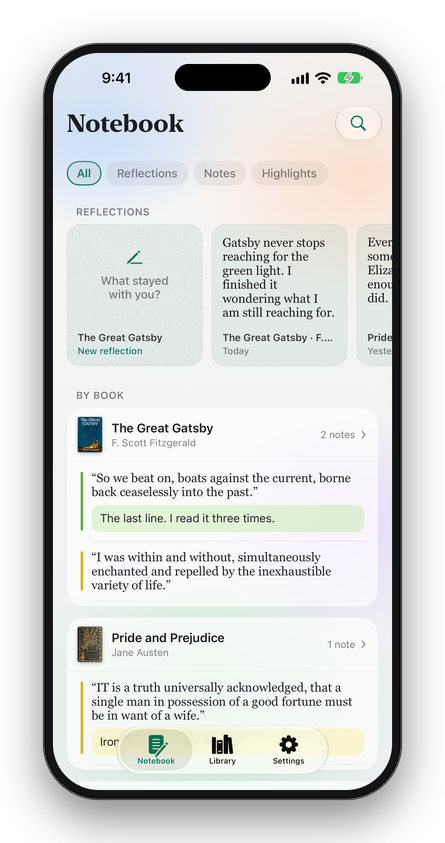
Four filters sit at the top: All, Reflections, Notes (highlights with a typed note or a drawing, and drawings on PDF pages) and Highlights. The magnifying glass searches the passages, your notes, your reflections and each book’s title and author, ignoring capitals and accents, within whichever filter is on.
Bookmarks aren’t in the Notebook tab. Each book’s are in its Contents.
By book
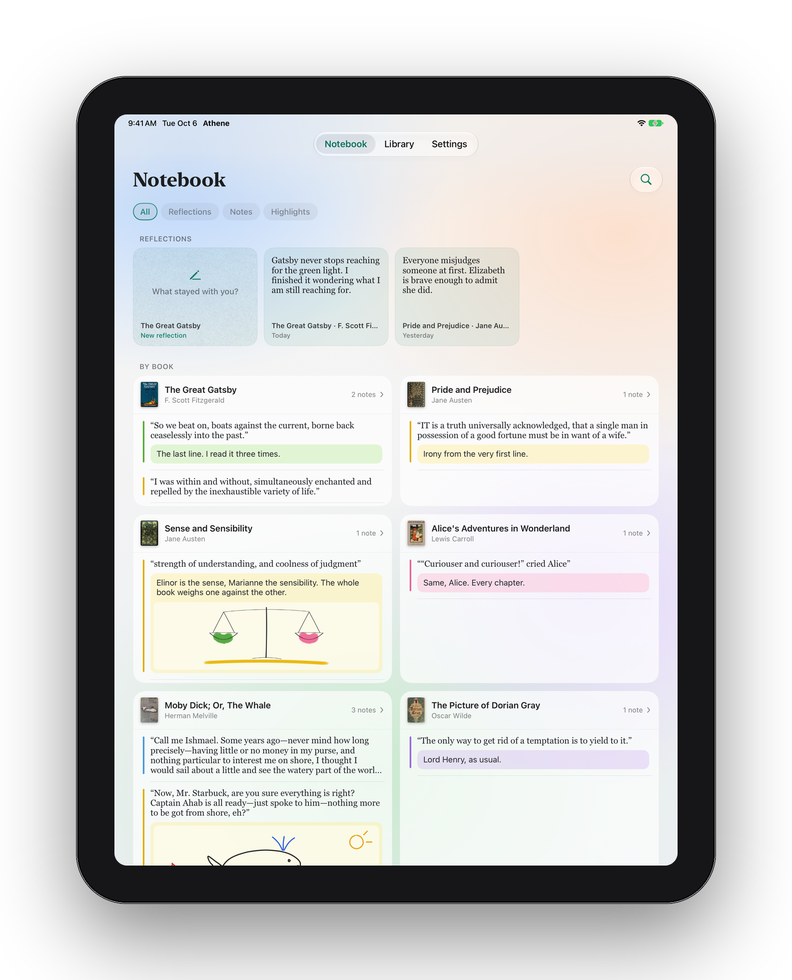
Under By Book, each book you’ve marked has a card with its cover, how many notes it holds and the two newest. The book you marked most recently comes first. On iPad the cards sit in two columns.
- Tap a note to open the book at that passage; closing the book brings you back to the Notebook.
- Tap a book’s card for its own page: everything in that book, its reflections first and then its notes in the order they come in the book, under the chapter names (or page numbers, for a PDF). Open Book opens it where you left off.
- Touch and hold a note for Open Page and Export.
Reflections
A reflection is what stayed with you, written after a chapter, a reading session or the whole book. The What stayed with you? card names the book you opened last: tap it to write about that one, or touch and hold it to choose from the five you opened most recently. A reflection can be typed or drawn, with Type and Draw as in a note. Tap ✓ when you’re done; nothing is kept until there are words or a drawing.
While you read, the same question is at the top of Contents › Notebook: What stayed with you so far? To write about no book at all, turn on Settings › Extras › Blank Pages for a Write or draw anything card.
Reflections stay in the Notebook even after you remove the book from your shelf. To delete one, open it, tap the bin and choose Delete Reflection.
Reflections are kept on the device you write them on; iCloud Sync doesn’t carry them. To keep one elsewhere, export it.
While you read
Inside a book, tap Contents and then Notebook for that book alone: its highlights, notes and bookmarks in reading order, under their chapters, with the filters All, Notes, Highlights and Bookmarks. Tap one to go there; the passage flashes.
- Swipe one left to Delete it.
- Touch and hold one for Add Note or Edit Note, Colour, Copy, Export and Delete.
In a PDF, the Contents and bookmarks button lists your bookmarks and notes page by page: swipe one left to Remove it, or touch and hold a note to export it.
Exporting
One note or reflection
Touch and hold it and choose Export, then Text (Markdown), for the words only, or PDF, which keeps your drawings. The file opens in the share sheet, to save to Files, send, or open in another app.
A whole book’s notes
Export Notes & Highlights takes everything you marked in a book, in book order. It’s the share button on the book’s page in the Notebook, in the book’s menu on your shelf, and, in a book that isn’t a PDF, at the foot of Contents › Notebook while you read.
| Text (Markdown) | The title and author, each passage as a quotation under its chapter, your notes after them, and the date. It opens in any Markdown app, such as Obsidian. |
|---|---|
| The same, set as pages, with your drawings and highlight colours. | |
| Annotated PDF | For a PDF book: a copy of the PDF itself with your highlights, notes and ink on its pages, as annotations any PDF app can show. The book on your shelf isn’t changed. |
For a PDF book, Annotated PDF takes the place of PDF. Bookmarks and reflections aren’t part of a book’s export; export a reflection on its own.
Deleting
The Notebook only gathers; nothing is deleted from it directly. Delete a highlight or note in its book, under Contents › Notebook, and a reflection in its own editor. Removing a book from your shelf removes its highlights and notes from this device, unless iCloud Sync keeps them; its reflections stay.
Written for Athene 3.4. Something here wrong, or missing? Write to athene@theadipost.com.