Athene Docs › Library
Library
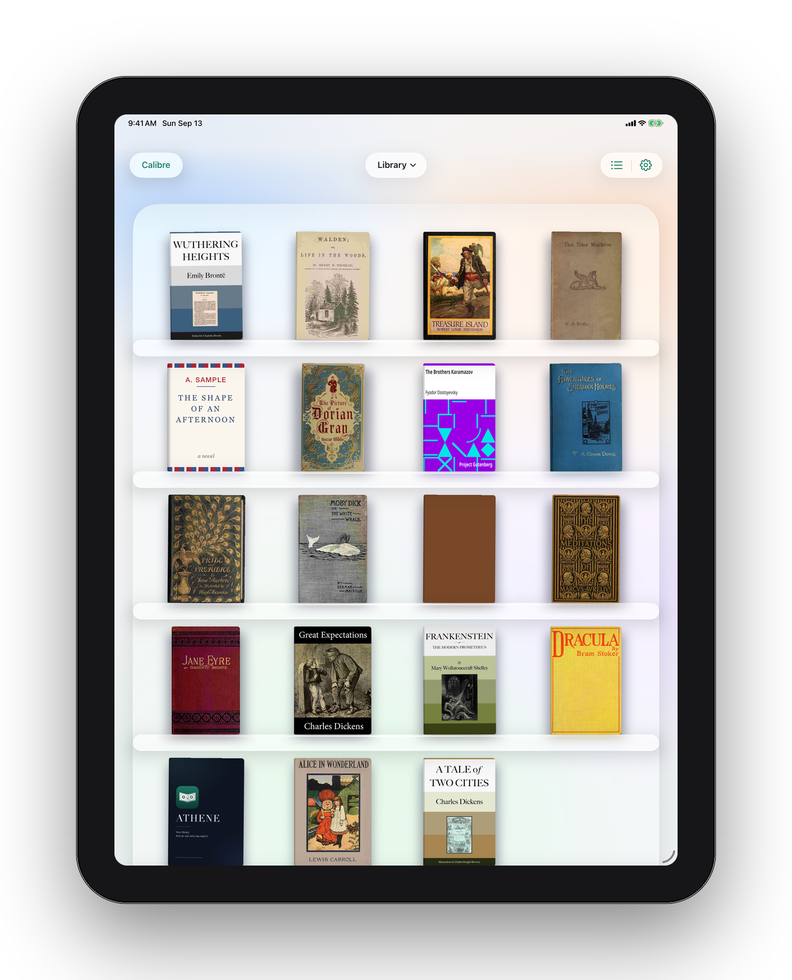
The Library is your shelf: every book you’ve added, standing on glass shelves, the newest at the front. It’s where Athene opens.
The shelf
The buttons at the top right of the Library:
| Mystery Book | A die, first in the row, with Settings › Extras › Mystery Book on. It picks your next book. |
|---|---|
| + | Add Books. See Adding Books. |
| Collections | Show one collection, a calibre tag, or the whole Library. Below. |
| List, Grid | Switch between covers on shelves and a list. The list shows each book’s title and author, when you last read it, or when you added it, and a dot on books you haven’t opened. |
A book with no cover of its own is given a plain jacket with its title and author.
The book you’re reading
The book you’re reading wears a bookmark on its cover. Under the Library’s title, Continue reading names it, with how far through you are; tap it to go straight back to your page. It’s the book you opened most recently that you haven’t finished. To hide that line, turn off Settings › Reading › Show What You’re Reading; the bookmark on the cover stays.
Searching
Pull the shelf down past its top until the search bar appears, and let go. Type part of a title or an author’s name; capitals and accents don’t matter. Inside a collection, the search covers that collection. With a keyboard, ⌘F opens the search and Esc closes it.
Collections
Tap the collections button to choose what the shelf shows. The Library’s title changes to the collection’s name.
- Built in
- Library (every book), EPUBs, PDFs and Finished. Put books in Finished yourself; reaching the end of a book doesn’t move it there. Finished books are left out of Continue reading and Mystery Book.
- Your collections
- Athene starts you with Want to Read; tap New Collection to make more.
- From Calibre
- The tags from your calibre library on the books on this shelf, most used first. Tap one to see those books. See calibre.
- Put a book in a collection: touch and hold its cover, choose Collections and tick one, or New Collection… to make one with the book in it.
- Put many books in at once: in the Collections list, touch and hold a collection and choose Add Books…, then tick the books.
- Rename or delete: touch and hold a collection, or swipe it, for Rename… and Delete…. Deleting a collection keeps its books in your library. Edit lets you reorder the list.
A book’s menu
Touch and hold a cover, or tap ••• beside a book in the list:
| About This Book | What it’s about and the details. Below. |
|---|---|
| Remove from … | Inside one of your collections: takes the book out of it. |
| Collections | Tick the collections the book belongs in, or make a new one. |
| Export Book | The book itself as a file. Below. |
| Export Notes & Highlights | Everything you marked in it, as Markdown or a PDF. See Exporting. |
| Send to KOReader | With KOReader sync on: puts the book on your e-reader. See KOReader. |
| Move | Lets you rearrange the shelf. Below. |
| Remove from Shelf | Takes the book off this device. Below. |
About This Book
The cover, title and author (tap the author to find their other books on your shelf), the series and the book’s number in it, and Read, Continue or Read Again. Under them, what the book is about, when it was published, its language and format, when you added it, and, for books from calibre, its tags. When a book carries no description, Athene shows how its first pages begin; when the Owl answers on a device with Apple Intelligence, it sums them up instead.
Export Book
Saves the book as a file, to keep in Files, send to someone or open in another app: an EPUB, or a PDF just as it came. A book Athene converted, from Word, Pages, MOBI or another format, exports as the EPUB Athene made of it; the original file isn’t kept.
Arranging the shelf
Choose Move, or start dragging a cover, and the books wobble: drag them where you want them. Tap ✓ or an empty part of the shelf when you’re done. The shelf can be arranged with every book showing, as covers, and no search open.
Removing a book
Choose Remove from Shelf. The book leaves this device, and with it your highlights in it, unless iCloud Sync is on, in which case they stay in iCloud and come back if you add the book again. Nothing is deleted from your calibre library, and your reflections on the book stay in the Notebook.
Where your books are kept
Every book you add is copied into Athene, so it stays readable wherever the original goes, and the original is never changed. Books Athene converts are kept as the EPUB it made. Athene’s books aren’t visible in the Files app; use Export Book to take one out. Deleting Athene deletes the books on that device, so keep a copy of anything you want first.
Written for Athene 3.4. Something here wrong, or missing? Write to athene@theadipost.com.