Athene Docs › PDFs
PDFs
A PDF keeps every page exactly as it was printed, so it opens in a reader of its own. You can’t change its type or paper, but you can zoom, highlight, write notes, draw on the page itself and have it read aloud.
The buttons
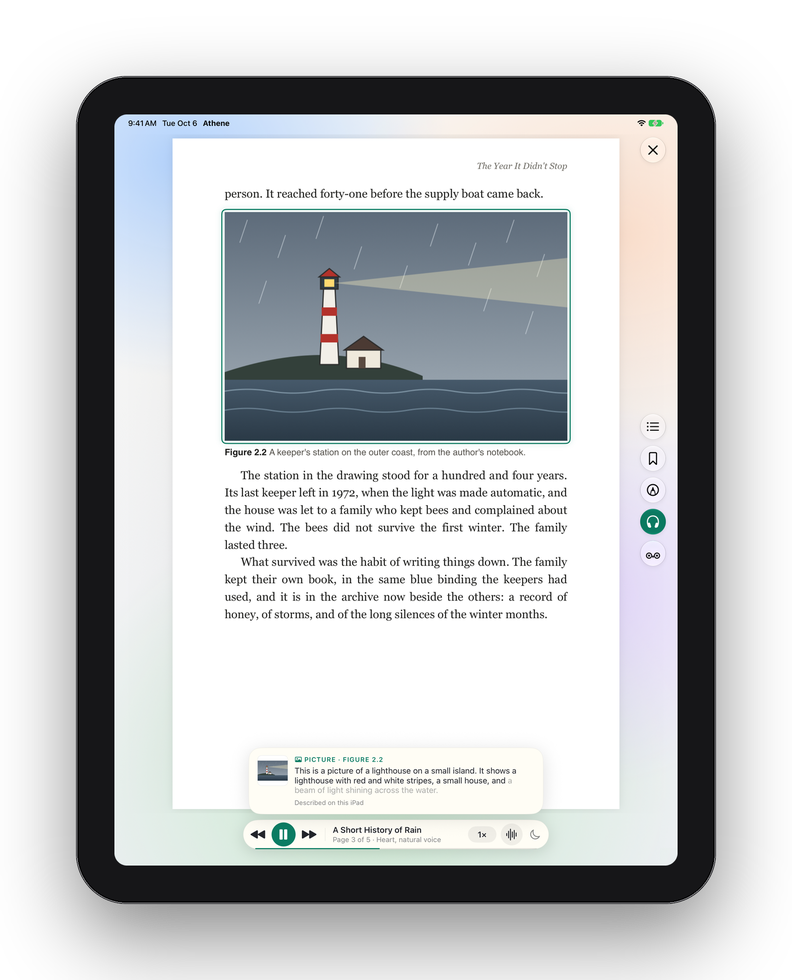
Tap the page to show or hide the buttons. ✕ at the top right closes the PDF. Down the right edge, from the top:
| Contents and bookmarks | Your bookmarks, your highlights and notes page by page, and the PDF’s own table of contents if it has one. |
|---|---|
| Bookmark | Bookmarks the page. Tap again to remove it. |
| Draw with a finger | Lets a finger draw on the page. Apple Pencil doesn’t need it. |
| Listen | Reads the PDF aloud from this page, or from the words you’ve selected. It appears for PDFs in English, French and Italian. |
| Ask the Owl | Ask about the page you’re on. |
Moving through a PDF
Swipe to turn the page. The slider at the foot moves through the whole document: drag it and a card shows the page’s number as printed and a picture of it, and your bookmarks are marked along it. A tap near the edge of a PDF page doesn’t turn it, unless Settings › Extras › Tap Zones is on and the page isn’t zoomed in.
Pinch to zoom in, up to four times the page’s fitted size, or double-tap.
Two pages side by side
From iOS 27, a PDF shows two pages side by side, like an open book: on an iPad held sideways when each page stays nearly as large as it would be alone, and always on iPhone Duo opened flat, a page each side of the fold. On iOS 26 a PDF shows one page at a time.
At night
When Athene’s light is Night, a PDF’s page is shaded darker rather than inverted, so photographs and diagrams keep their true colours.
Highlights and notes
Touch and hold to select words, then choose Highlight or Add Note from the menu. The highlight takes the colour you used last. Tap a highlight to change its colour, add or edit its note, copy it, translate it or remove it, or to open the Owl and ask about the page. On English pages, Define opens the dictionary.
A scanned page is a picture of text, with no words to select, so it can’t be highlighted. Listen can still read it.
Drawing on the page
Write on a page with Apple Pencil the moment it touches the screen; there’s nothing to turn on. To draw with a finger, tap Draw with a finger. Either way the ink tray appears at the foot, with the same pens and inks as a note’s drawing, Undo, and ✓ to finish.
Once you’ve used Apple Pencil, a finger turns pages and scrolls while the Pencil draws. Your ink is kept by Athene, not written into the PDF file; to send the PDF on with your marks on its pages, export it from the Notebook.
Contents and bookmarks
The Contents and bookmarks button lists three things: Bookmarks, page by page; Notes, your highlights and notes grouped by page; and Contents, the PDF’s own table of contents, when it has one. Tap any of them to go there. Swipe one left to remove it, or touch and hold a note to export it.
When two pages are showing, the one bookmark button covers both: it’s lit if either page has a bookmark, and a tap bookmarks the left-hand page.
Athene can’t search inside a PDF. Your place is kept as in any book, and the last page counts the PDF as finished.
Written for Athene 3.4. Something here wrong, or missing? Write to athene@theadipost.com.