Athene Docs › Reading
Reading
Tap a book on your shelf and it opens where you left off. This page is about getting around a book. How the page looks is under The Page, and PDFs, which have a reader of their own, are under PDFs.
The buttons
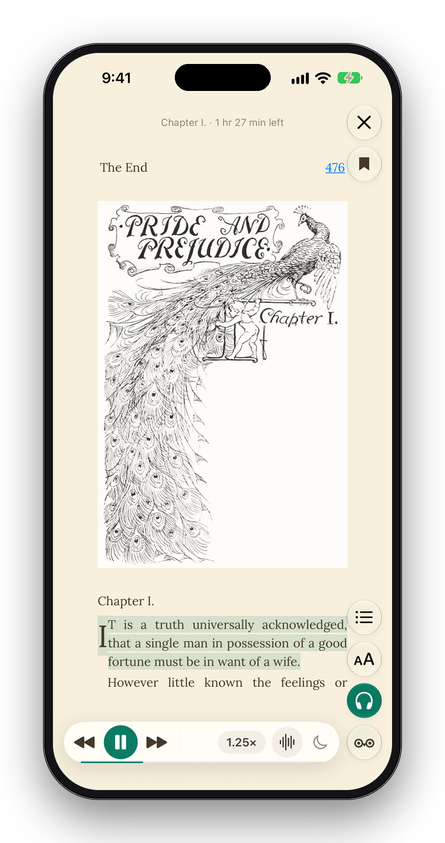
Tap the middle of the page to show or hide the reader’s buttons. Hiding them hides the clock and battery too, and the words stay exactly where they are.
| Close ✕ | Top right. Closes the book; your place is kept. |
|---|---|
| Bookmark | Under ✕. Bookmarks the page you’re on, and turns red on any page that has one. Tap it again to remove the bookmark. |
| Contents | The list button, at the top of the column on the right. The table of contents, this book’s highlights, notes and bookmarks, and search. |
| Aa | Paper, brightness, size, typeface, spacing and margins. See The Page. |
| Listen | The headphones. Reads the book aloud from this page, or from the words you’ve selected. It appears for books in English, French and Italian. See Listen. |
| Ask the Owl | At the foot of the column, nearest your thumb. Ask about the page you’re on. See Ask the Owl. |
On iPhone Duo opened flat, the buttons move into a strip at the side of the screen: see iPad & iPhone Duo.
The line at the top of the page says how many pages are left in the chapter, and while Athene reads aloud, how many minutes. The page number sits at the foot: 40 of 115 while the buttons are showing, just 40 while they’re hidden. For a moment after a big book opens, while Athene counts its pages, it reads 4 of 31 in this chapter instead.
Tip: for a fine line across the foot of every page showing how much of the book you’ve read, turn on Settings › Reading › Show Reading Progress.
Turning pages
- Swipe left for the next page and right for the one before. The page follows your finger; let go a third of the way across, or flick, and it turns.
- Tap near the right edge for the next page, near the left edge for the one before. A tap anywhere else shows or hides the buttons.
- Keyboard: →, ↓ or Page Down for the next page, ←, ↑ or Page Up for the one before.
- Trackpad: swipe two fingers across the page, to the left for the next page and to the right for the one before.
To turn pages with a tap anywhere on the page rather than near its edge, turn on Settings › Extras › Tap Zones and choose Sides (the left third goes back, the right third forward) or Top & Bottom (the top third goes back, the bottom third forward), which suits reading lying on your side. Either way the middle third shows the buttons. The next book you open shows the zones for a moment, so you can see where they fall.
Aa › Layout › Page Turn sets how a page moves as it turns. Slide follows your finger; Fade fades from one page to the next.
Two pages at once
When the page is wide enough, as on an iPad held sideways or an iPhone Duo opened flat, Athene sets two pages side by side, like an open book. They turn as a pair, and each has its own page number. An iPhone held sideways shows one wide page.
Contents and search
Tap Contents for the book’s cover, title and author over three tabs.
- Contents
- Every chapter, indented as the book nests them, with its page number. The chapter you’re in is highlighted. Tap one to go there.
- Notebook
- This book’s highlights, notes and bookmarks in reading order, and What stayed with you so far? to write a reflection. See The Notebook.
- Search
- Type a word or phrase and tap Search on the keyboard. Capitals and accents don’t matter, so cafe finds café. Each result shows the words around the match and its chapter; tap one to go there, and the match flashes. A search shows up to 200 results.
Bookmarks
Tap the bookmark under ✕ to bookmark the page; it turns red. Tap it again to take the bookmark away. Every bookmark in a book is listed in Contents › Notebook, under Bookmarks.
Links
A link to another part of the book takes you there. A link to a website or an email address asks first, then opens in your browser or in Mail.
Your place
Athene keeps your page in every book and opens each one where you left it. If you’ve read this book more recently on another device, through iCloud Sync or KOReader, a note at the top of the page says where you were (On your iPad, with the chapter) and offers Go. Athene never moves your page by itself; read on and the note goes away.
A book opened from a note in the Notebook opens at that note, and closing it takes you back to the Notebook.
The end
Turn past the last page and Athene marks the book as finished, with a page that says so and a button back to the Library (or to the Notebook, if that’s where you opened it). In a Project Gutenberg book this page comes before the licence, which is still in Contents. Swipe back to return to the last page. Finish a book between eleven at night and five in the morning and the Owl on that page is asleep.
Written for Athene 3.4. Something here wrong, or missing? Write to athene@theadipost.com.